
The Vantify CAFM automated overview report brings together key information from across the system into one clear visual report. Using a range of charts and graphs, it provides an at-a-glance view of your data, helping you quickly understand performance, activity and trends without having to review individual reports.
Alongside the visual report, you’ll also receive an Excel file containing the supporting data, allowing you to explore the details behind the figures, carry out further analysis, or use the information for your own reporting.
If you are a Vantify Risk Manager user you will be familiar with the same report covering compliance, documentation and actions, we’re bringing that same look and feel to the CAFM.
How Do I Use It?
It is now an option in the reports section that you’ll find on the left-hand menu bar.
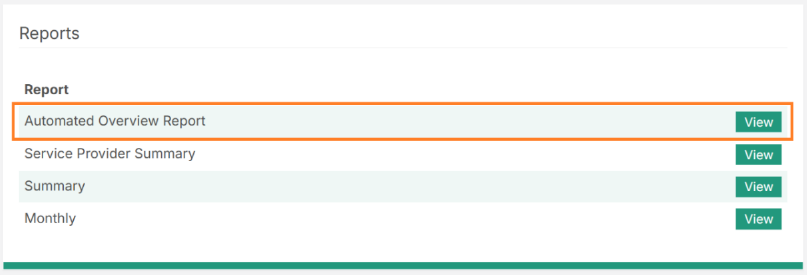
Choose the relevant year and month and click Generate Report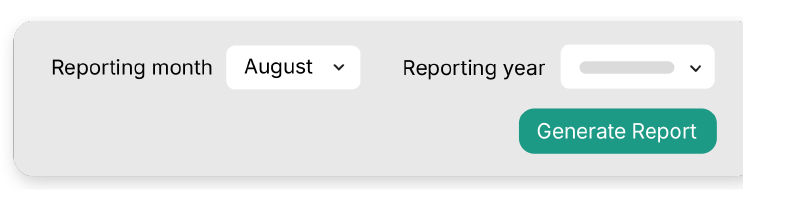
You can then download your report.
What Will the Report Look Like?
You will receive two files – the visual report in a Word document and an Excel file containing all the supporting data.
The Visual Report
The report is designed to make the information as easy as possible to digest using graphs and charts, visually guiding you through a month in the life of your CAFM system. It clearly highlights areas for improvement and under-utilised elements which could benefit you.
You can right click any of the graphs and click edit data to view the source of the chart. Make sure you’re not in view-only mode, as this functionality will not work.
Graphs in the report include reactive, planned, all jobs and quotes, for example:
- Reactive jobs by priority
- Reactive jobs by service provider
- Reactive jobs due for attendance and completion
- Planned jobs aligned with the same categories
- Outstanding jobs
- Quotes
The Excel File
This will have two tabs – jobs and quotes. The data is an extract from the month in question – this is an amalgamation of all the criteria within the graphs on the word file. For example, dates due to be attended in the month, and jobs due to be completed within the month (as well as various other pieces of information).
This spreadsheet provides useful information to create your own bespoke reports, ensuring your business has easier access to the most relevant data.